CONNECTION GUIDE

Connect social accounts, then publish from Notes or Calendar.

Open Workspace → Accounts to connect a social provider, or add Social Context from a note. Provider sign-in stays in the provider authorization window; after authorization, Conteenua shows the connected account and its available destinations.

Open Conteenua
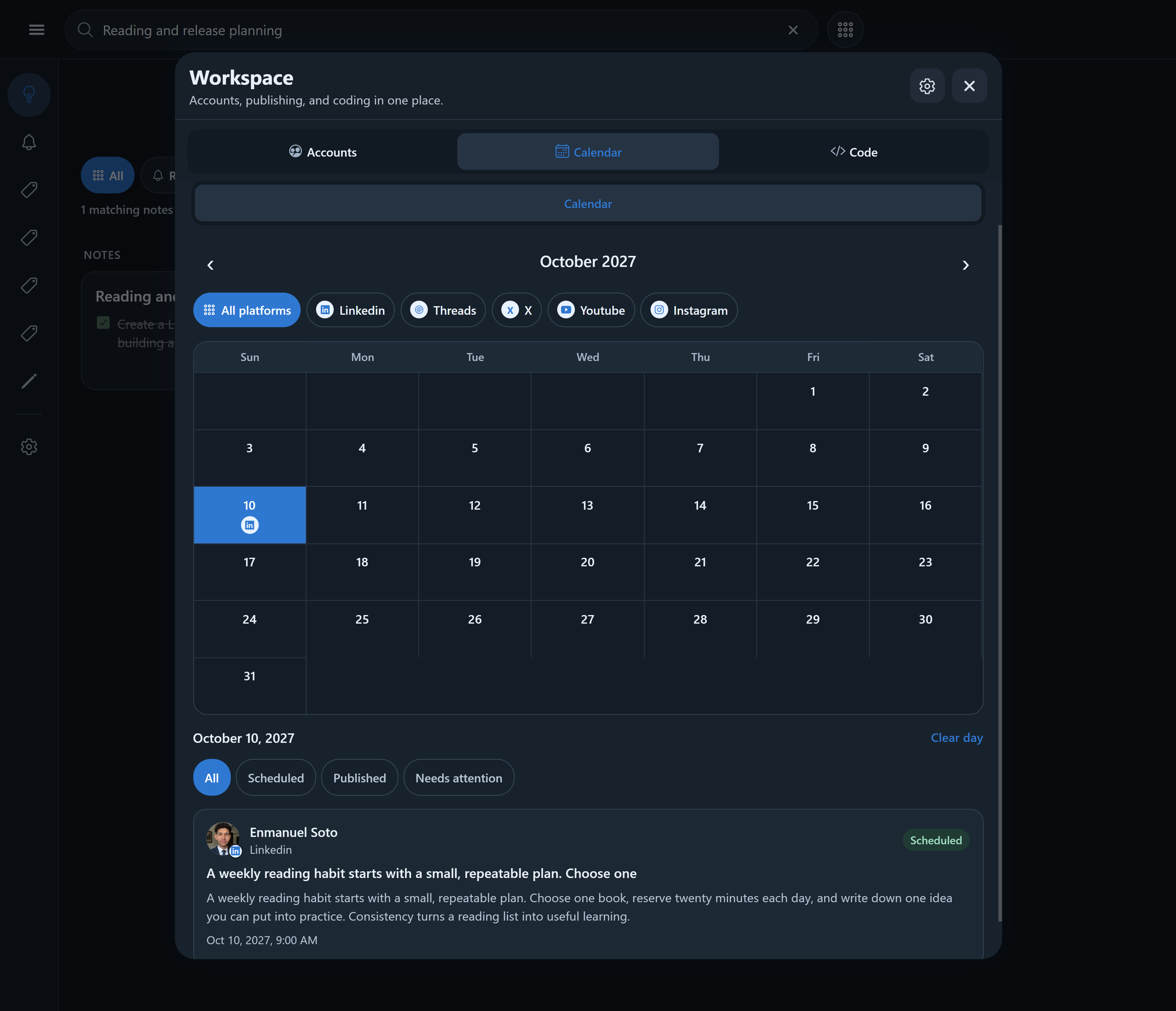
Conteenua publishing calendar with scheduled social activity

Before you begin

Use an Instagram Business or Creator account connected to a Facebook Page when required, an active Threads profile, a YouTube channel, an X account, or a LinkedIn member account. Organization publishing needs the required admin access.

Choose Connect

Select Connect beside the provider. Conteenua opens the provider authorization page; never enter a provider password into Conteenua.

Check the destination

After returning, confirm the account name and exact destination. Add that destination as Context to a checklist row, or select it inside Workspace → Calendar → Manual. Reconnect if the provider reports an expired token or missing permission.

Manual editing, rendering, compatible page-to-video conversion, scheduling, and publishing do not use Conteenua AI credits. AI writing, semantic page/layout creation, and natural-language creative revisions use the displayed AI credits. Generative image/video creation is not part of this release.